
Your first session / Illustrated setup
Start Codex on your computer.
Continue on your phone.
A host is the computer that runs your tools. A persistent session keeps those tools running while you switch screens. This tutorial starts Codex in a Mons session, then opens that same terminal on your iPhone or iPad.
Have your Mac or Linux computer and your iPhone or iPad ready. Keep the computer awake and online. Pictures show real host and App screens, with close-ups on phones. The installer diagram is an illustration.
Chapter 1 / Mac or Linux
Prepare your host
Complete this chapter on the computer that runs Codex. Keep its Terminal windows open when you finish.
1.1 / On your computer
Install Mons Host
- On a Mac, press Command + Space, type Terminal, and press Return. On Linux, open your terminal application.
- Copy the command below into Terminal. Press Return and wait for it to finish.
curl -fsSL https://mons.cc/install.sh | shRun it as your normal user, without sudo. Wait for installation to finish. Open a new Terminal window so it loads the installed command's path. Check the version there:
mons --versionPress Return after the command. Then check the Host:
mons statusReady when: the version command prints a Mons version and the status command reports the installed Host.
Host packages support macOS 13+ and Linux x86_64/arm64. Linux needs a non-root user and an available systemd user manager. If installation fails, use the installation troubleshooting. Read verification requirements if macOS blocks a downloaded preview.

1.2 / On your computer
Enable SSH access
SSH lets Mons open a terminal on your computer. Installing Mons Host does not turn SSH on.
- On a Mac, open System Settings → General → Sharing.
- Click the ⓘ information button beside Remote Login (1).
- In the dialog, enable Remote Login (2).
- Check Allow access for (3). Your login user must be allowed. If Only these users is selected and your user is missing, click + (4), select your user, then click Select.
Leave other settings unchanged for this tutorial. See Apple's Remote Login instructions for macOS details.
Ready when: Remote Login is on and your user is allowed.
On Linux, enable your distribution's OpenSSH server and allow your login user. Follow the Linux SSH instructions if you have not set it up before.
Record the host identity. Return to your host Terminal. Copy this complete block, paste it, and press Return:
for host_key in /etc/ssh/ssh_host_*_key.pub; do
  ssh-keygen -lf "$host_key"
done
The output contains a key type and a value beginning with SHA256: for each public key. Save this output for identity verification later. Do not share private key files.
Real macOS 15.8.1 captures with labels translated into English. The SSH command uses an example account and address.


1.3 / On your computer
Start Codex in a persistent session
Codex runs on your computer with your own account. Mons gives your phone access to that terminal session.
Install Codex first if you do not have it
The official Codex CLI setup provides this installer for macOS and Linux:
curl -fsSL https://chatgpt.com/codex/install.sh | shOpen a new Terminal window after installation. When you first run Codex, follow its sign-in instructions.
Use the host Terminal where mons status succeeded. Press Return after each command.
- Open the Mons session named work:
mons open work - In the opened session window, start Codex:
codex
This is your Codex window. Follow Codex sign-in if requested. The session is named work.
Type this task at the Codex prompt, then press Return:
Create an index.html page with the heading "Hello from Mons". Explain what you changed.
Review any file or command approval shown by Codex. Keep this Terminal window open.
Ready when: Codex is running in the Mons session and you can see its response.
If mons help does not list open, check your installed CLI's capabilities before continuing. Mons does not install or sign in to Codex for you.
Run mons open work again from another host Terminal to return to this session.

1.4 / On your computer
Generate a pairing code
Leave your Codex window open. Open another Terminal window on the same host. On a Mac, use Command + N while Terminal is active. On Linux, use your terminal application's New Window action.
This is your pairing window. Enter this command at its shell prompt, then press Return:
mons pairKeep this command running while you complete the App chapter. A pairing code is one-time access information. Keep it private.
Ready when: the host Terminal shows a QR code and pairing link.
The code expires. To generate a new code, run mons pair again in this host Terminal.

Host chapter complete: SSH is enabled, your fingerprints are saved, and Codex is running in a Mons session. Your pairing window shows a QR code. Keep the Codex window and pairing window open.
Chapter 2 / iPhone or iPad
Use the app
Complete this chapter on your phone or tablet. The host must remain awake and online.
2.1 / On your iPhone or iPad
Install the Mons app
- Install Apple TestFlight on your device.
- On that same device, open the Mons TestFlight invitation.
- Tap Accept, then Install. Open Mons when installation finishes.
Ready when: Mons opens on your phone or tablet.
TestFlight shows device compatibility and current invitation availability. If the invitation is full or closed, check again later.
2.2 / On your iPhone or iPad
Add a connection with Easy Pair
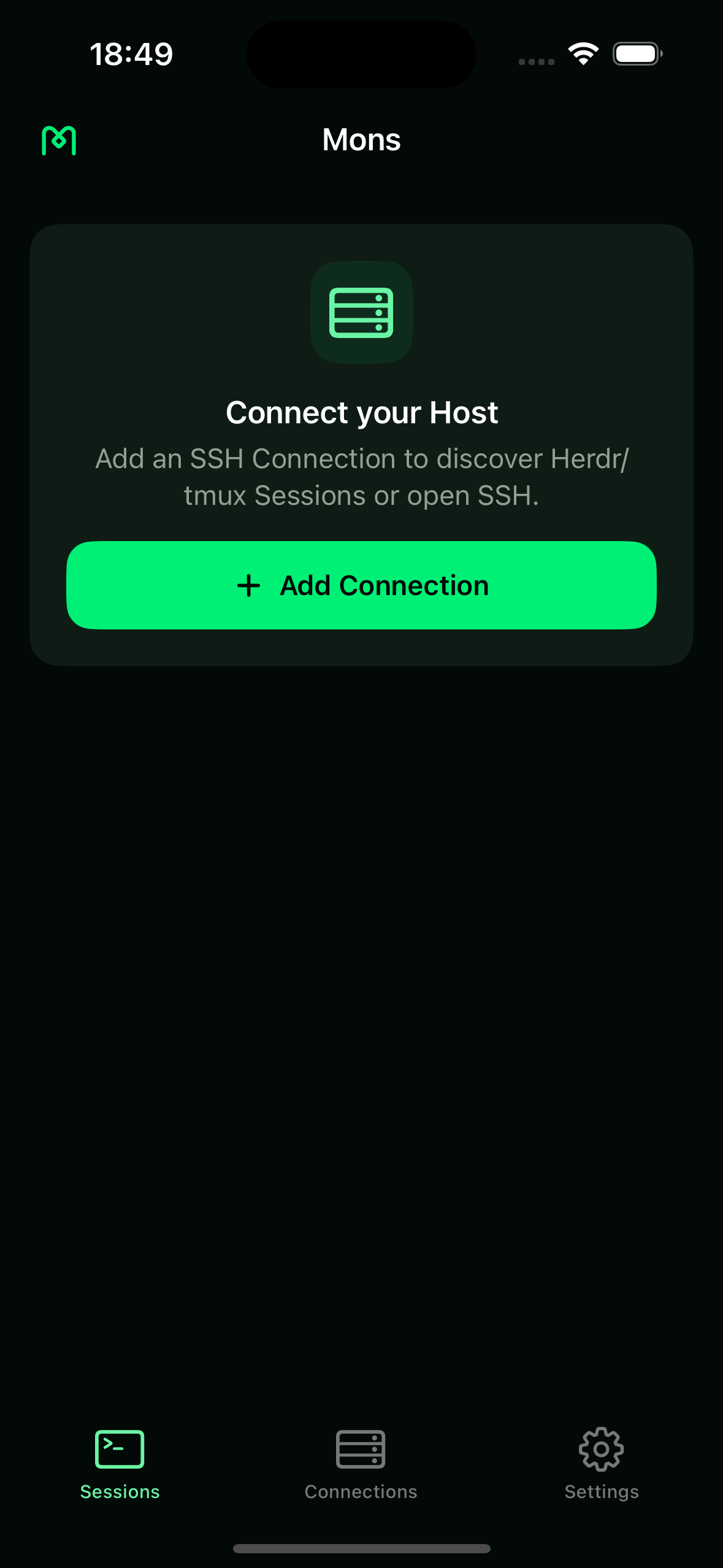
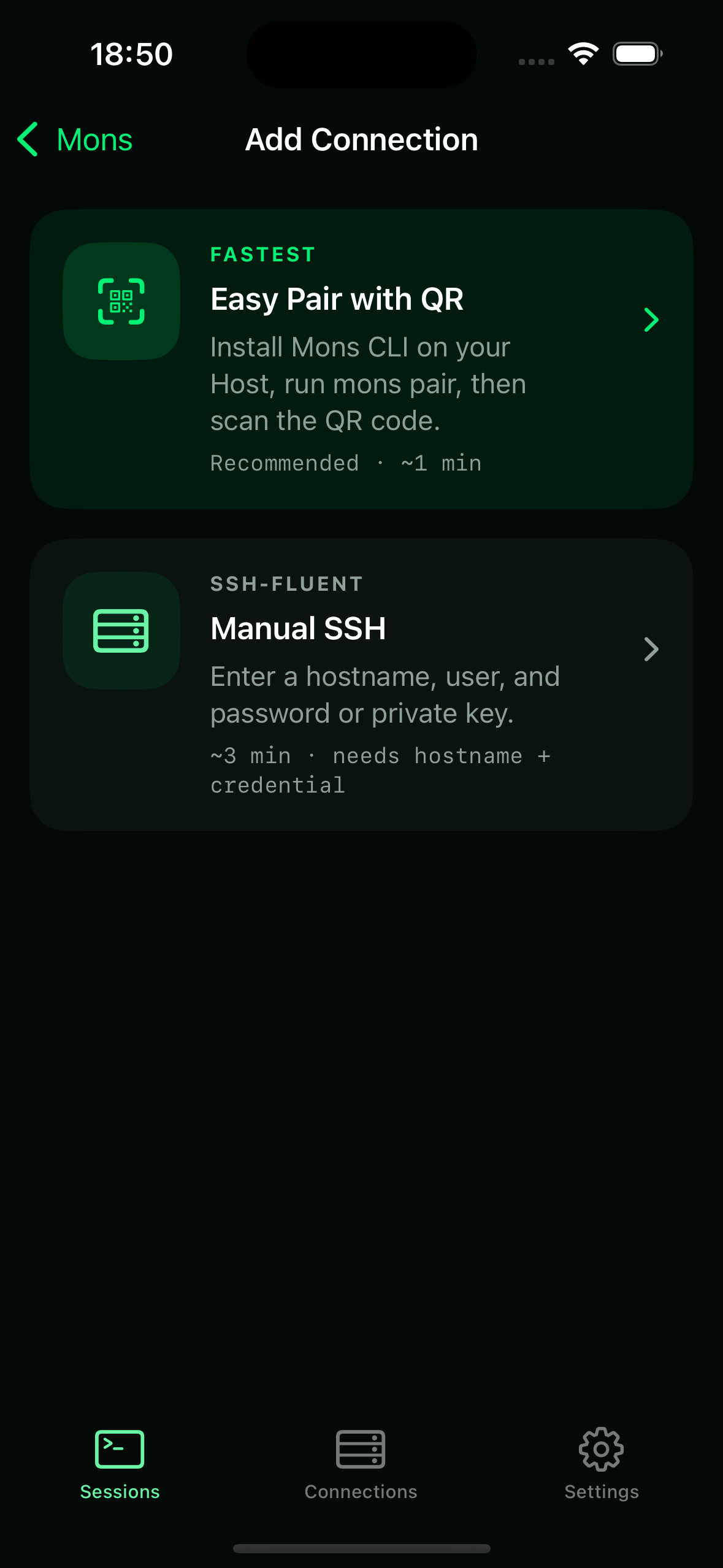
- In the Mons app, tap Add Connection, or the + beside Connections.
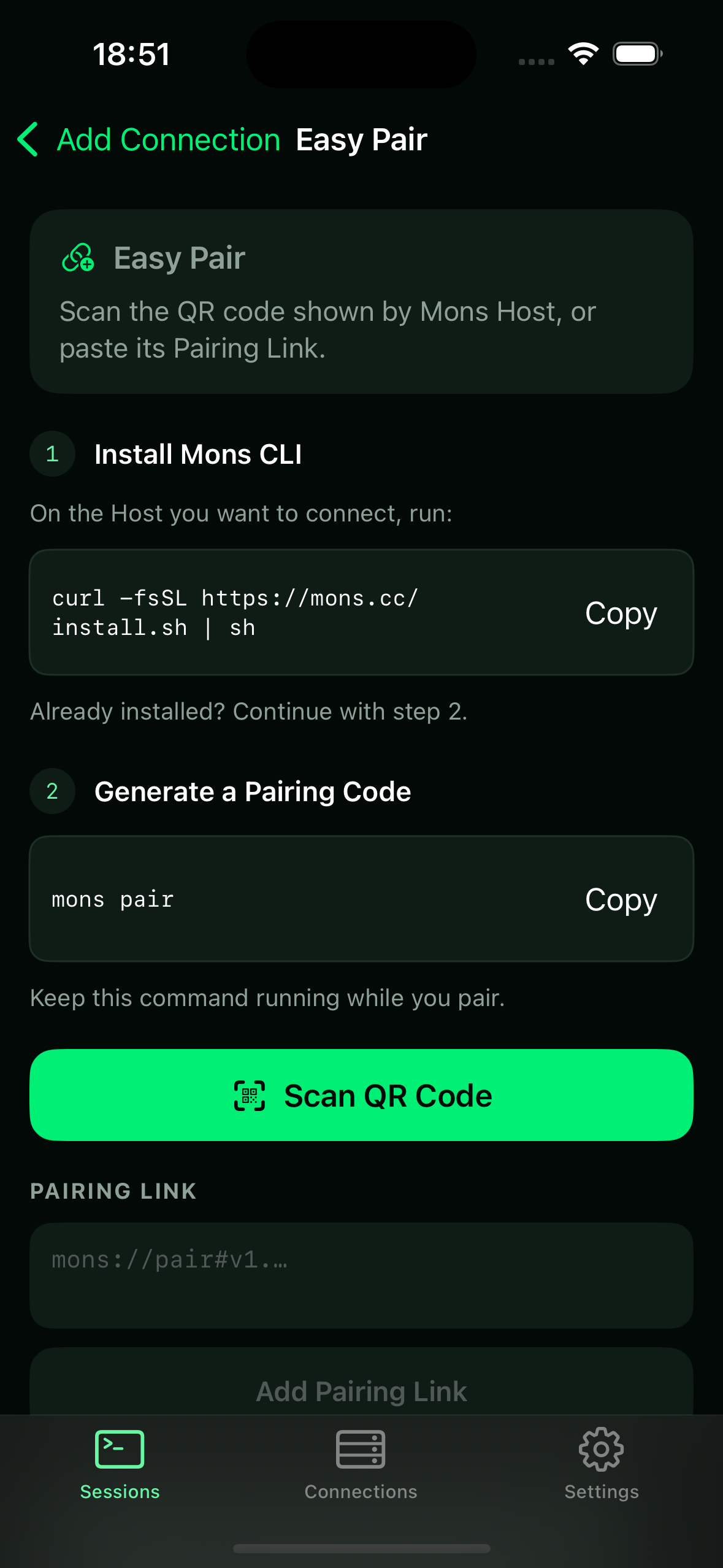
- Choose Easy Pair with QR, then tap Scan QR Code.
- Allow camera access if requested. Point the phone's camera at the prepared QR code. Keep Mons open until it returns to the home screen.
Without a camera, paste the pairing link from your computer into Pairing Link, then tap Add Pairing Link.
Ready when: your computer appears under Connections on the Mons home screen. Its name can differ from the example's Demo Mac.
Your devices do not need the same Wi-Fi. Use a current pairing code and keep it private. A saved connection still needs working SSH to open a terminal.
2.3 / On your iPhone or iPad
Open your session and continue Codex
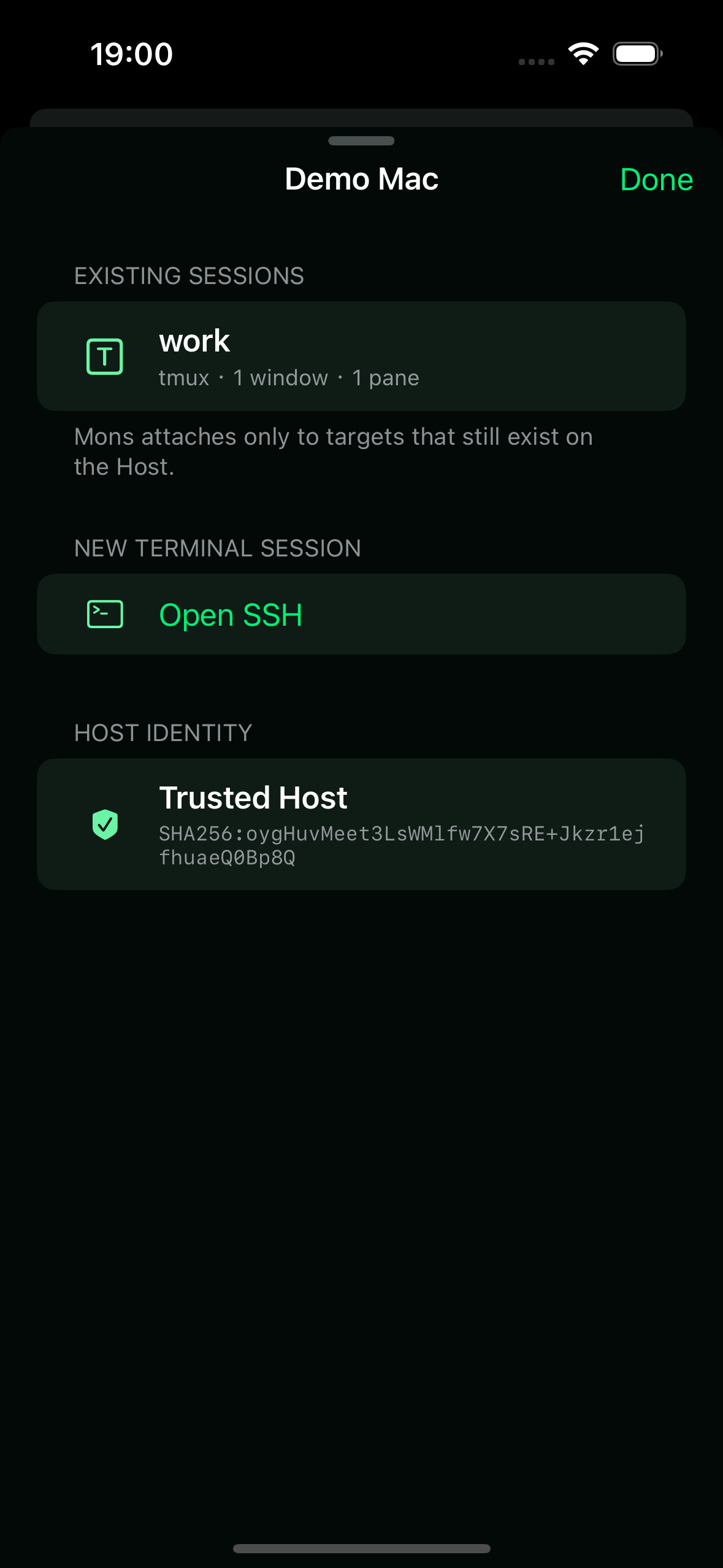
- On the Mons home screen, find Connections. Tap your computer's name. The example uses Demo Mac.
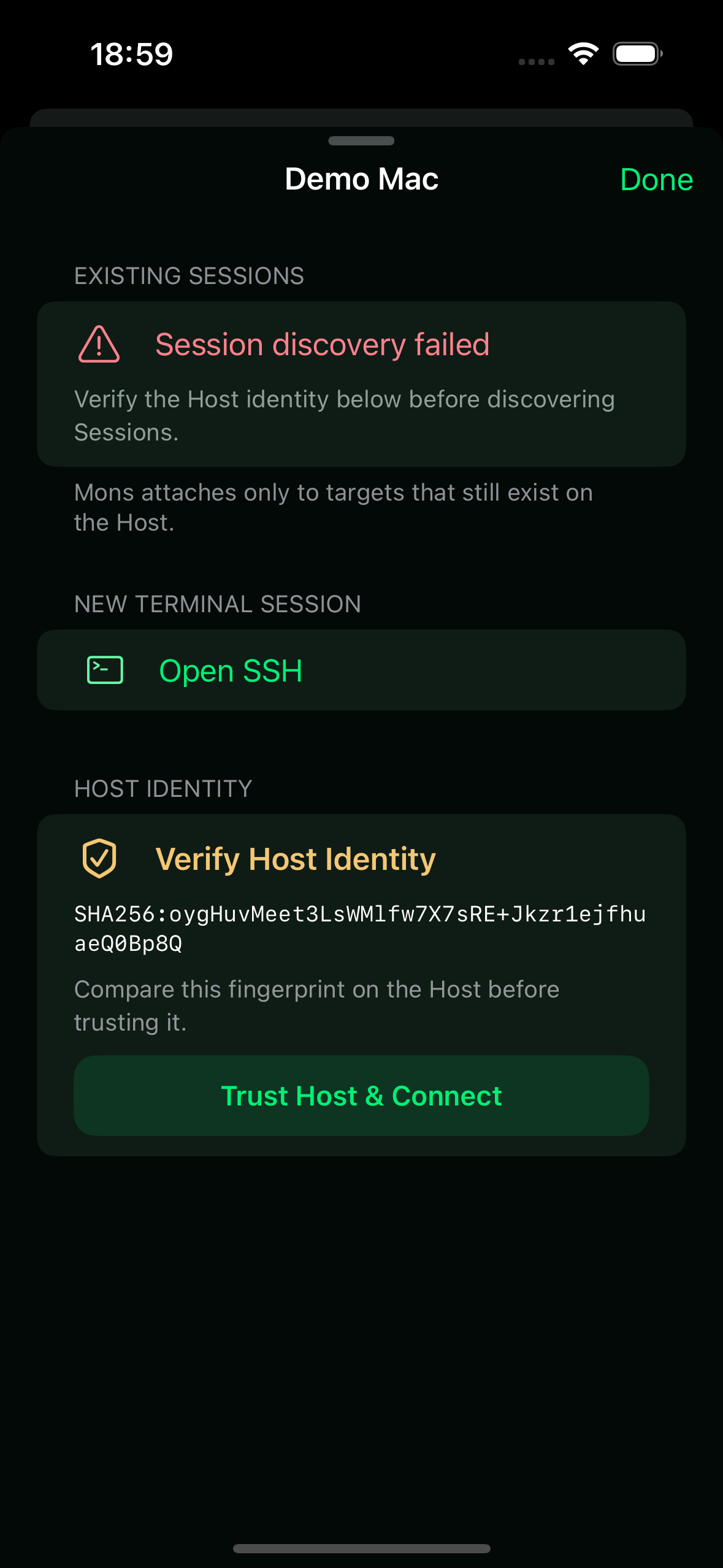
- If Verify Host Identity appears, compare the key type and fingerprint with your saved host fingerprints. Choose Trust Host & Connect only after they match.
- Wait for work to appear under Existing Sessions. Tap it to open its terminal.
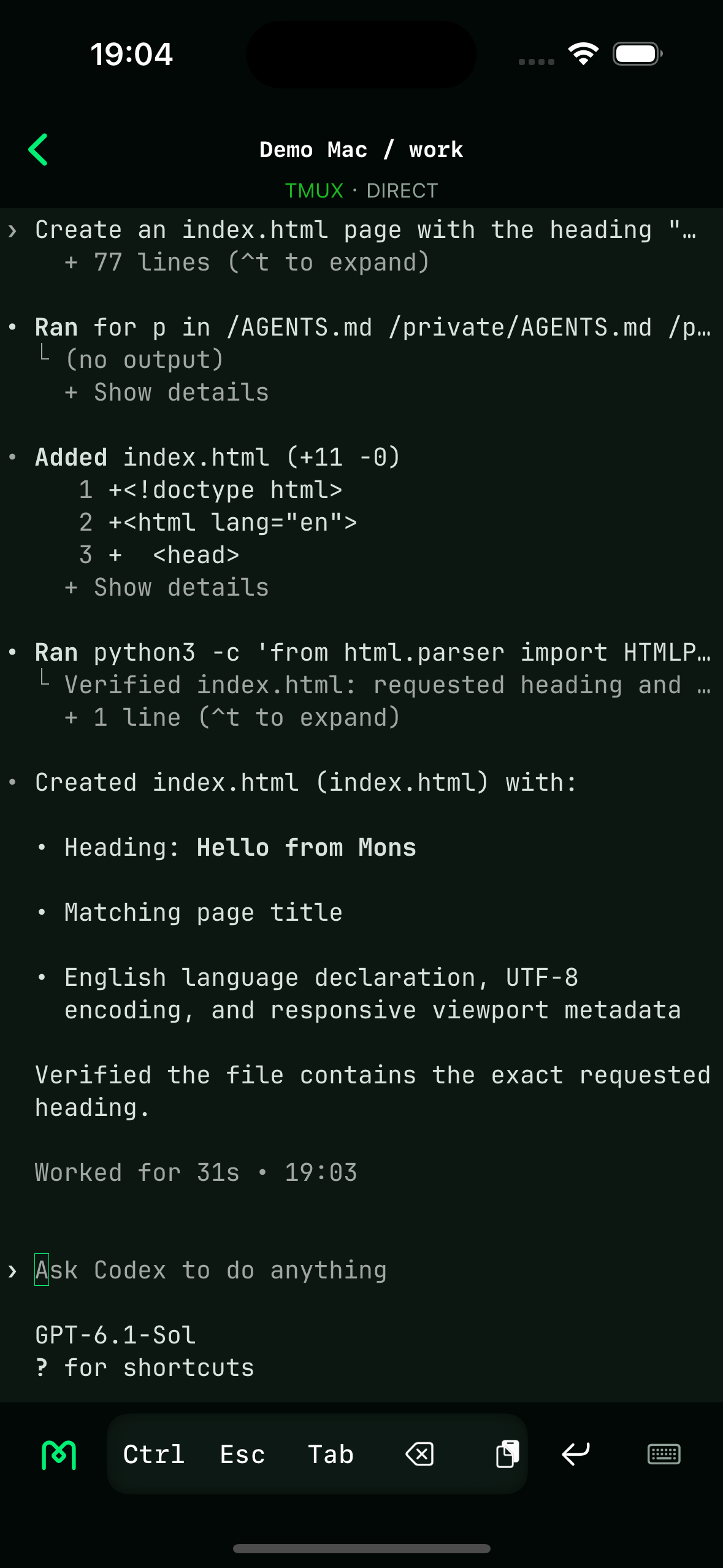
- Confirm that the terminal shows the Codex task from the Host chapter. Tap the keyboard button at the bottom right.
Use the fingerprints from Host step 1.2. Do not approve a key that does not match.
Tap the Codex input prompt. Type the following request, then tap Return on the keyboard:
Add a short sentence below the heading.
Ready when: the same Codex session responds to your new request from the phone.
Tap the back arrow at the top left when you finish. The session keeps running. To return, tap your connection and select work again.
Keep the host awake and online. Stopping a session ends its processes, including Codex. Leave the terminal view when you want to keep working later.
Something did not work?
Stop at the first step whose expected result does not appear. Keep the exact error message. Use the matching troubleshooting topic below.
Want your agent to guide the setup? Give it mons.cc/llms.txt and ask it to help you follow this tutorial.